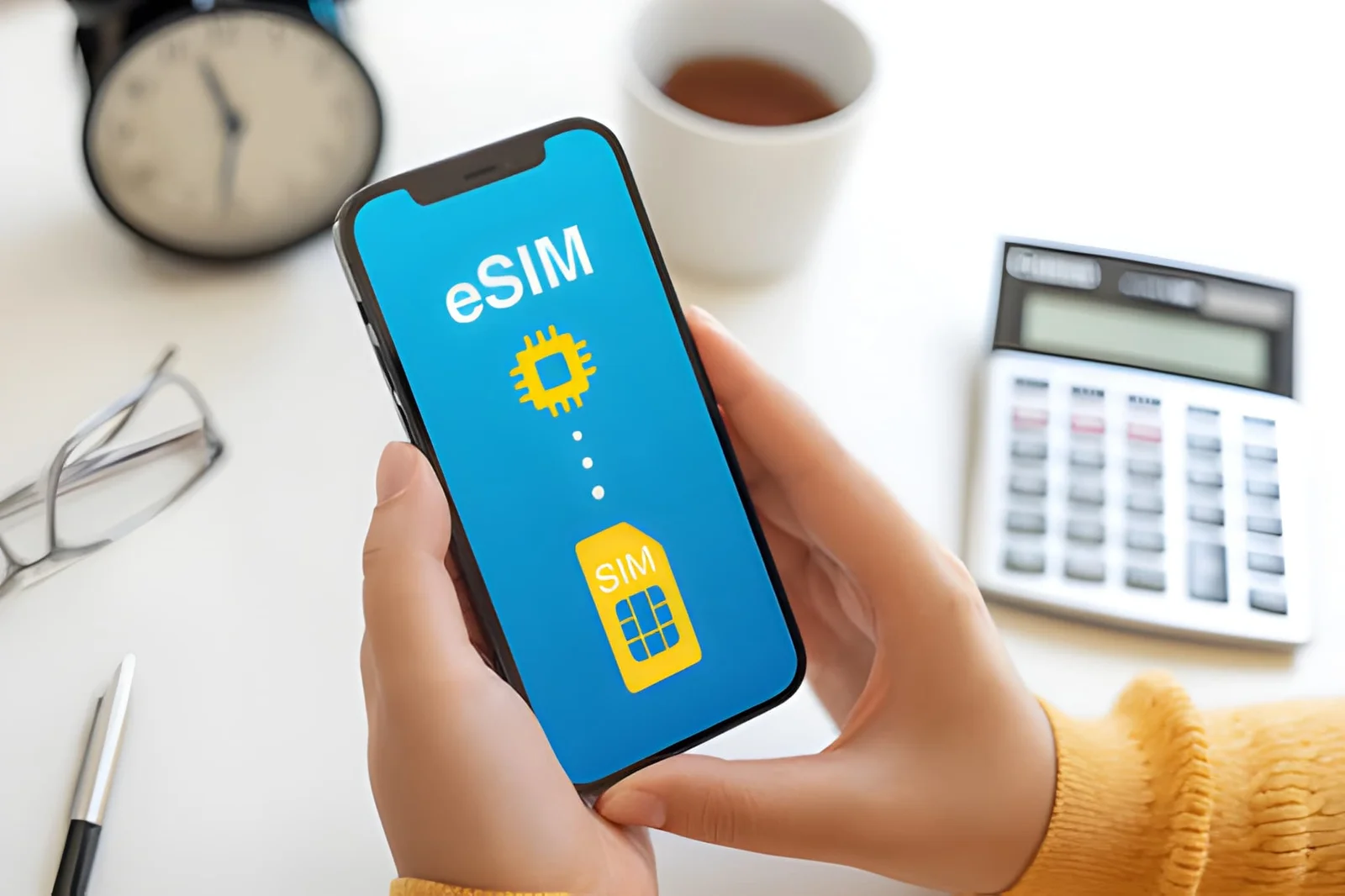
Editor’s Note: Every iPhone from the 2018 XR / XS generation onward is eSIM compatible; nothing older is. This page follows Apple’s official documentation and GSMA standards, and the model-number table is the part most guides skip — it is what separates a China unit (no eSIM) from a global one with the same name. Last checked October 2026.
Which iPhones are eSIM compatible? Every iPhone from the XR, XS and XS Max (2018) onward — including the 11, 12, 13, 14, 15, 16, 16e, 17 and both SE models from 2020. The iPhone 8, 8 Plus, X, 7, 6s and anything older are not: they have no eSIM chip and no update will add one.
Dial *#06# and look for a 32-digit EID to confirm the exact handset in your hand. The tables below run from the iPhone 8 through the iPhone 17, including the model numbers that identify a China unit or a US eSIM-only unit.
How to Identify Your iPhone Model for eSIM
Not sure if your iPhone supports eSIM? Find your model below and get your instant answer.
| Your iPhone Model | eSIM Support | Quick Answer |
|---|---|---|
| iPhone 8, 8 Plus, iPhone X | ❌ No | Physical SIM only – no eSIM hardware. Skip to alternatives |
| iPhone XR, XS, XS Max | ✅ Yes | First iPhones with eSIM. Physical SIM + eSIM. |
| iPhone 11, 11 Pro, 11 Pro Max | ✅ Yes | Physical SIM + eSIM. ⚠️ China models = NO eSIM. |
| iPhone SE (2nd or 3rd gen) | ✅ Yes | Physical SIM + eSIM. Budget eSIM option. |
| iPhone 12, 12 mini, 12 Pro, 12 Pro Max | ✅ Yes | Physical SIM + eSIM. First 5G + eSIM. |
| iPhone 13, 13 mini, 13 Pro, 13 Pro Max | ✅ Yes | Physical SIM + eSIM OR dual eSIM. First dual eSIM support. |
| iPhone 14, 14 Plus, 14 Pro, 14 Pro Max | ✅ Yes | US = eSIM‑only. Global = physical + eSIM. |
| iPhone 15, 15 Plus, 15 Pro, 15 Pro Max | ✅ Yes | US = eSIM‑only. Global = physical + eSIM. |
| iPhone 16, 16 Plus, 16 Pro, 16 Pro Max | ✅ Yes | US = eSIM‑only. Global = physical + eSIM. |
| iPhone 16e | ✅ Yes | New budget model – eSIM support. Check region for physical SIM. |
| iPhone 17, 17 Pro, 17 Pro Max, 17 Air | ✅ Yes | US = eSIM‑only. Global = physical + eSIM (expected). |
| Not sure – just check my phone | Dial *#06# – look for EID |
How to verify your iPhone |
Complete iPhone eSIM Guide
Here’s the path most users follow when setting up eSIM on iPhone.
| Step | What You’re Doing | Where to Find It |
|---|---|---|
| 1. Verify device compatibility | Check if your specific iPhone model has eSIM hardware. | Quick Diagnosis |
| 2. Check region and carrier lock | China model? Carrier locked? | Regional differences |
| 3. Find the EID | Confirm eSIM hardware is present. | How to verify |
| 4. Activate your eSIM | Scan QR code or use carrier app. | Activation steps |
| 5. Set up dual SIM | Physical + eSIM or dual eSIM. | Using physical SIM and eSIM together |
| 6. Troubleshoot if needed | No signal? Activation failed? | Troubleshooting |
Which iPhones Support eSIM?
Three rules cover every model Apple has shipped, and they are worth learning because they also explain the exceptions further down.
Rule 1 — 2018 is the dividing line. eSIM arrived with the iPhone XR, XS and XS Max. Every iPhone released after them has it; every iPhone released before them does not. That single sentence settles the “esim compatible iphones” question for the iPhone 8, 8 Plus, X, 7, 6s and 6.
Rule 2 — the model matters more than the name. A mainland-China iPhone has the eSIM chip removed at the factory regardless of generation, so an iPhone 11 bought in Shanghai is not eSIM capable while an iPhone 11 bought in London is. Hong Kong and Macau units are mixed and need checking.
Rule 3 — the US changed the tray, not the chip. From the iPhone 14 onward, US models ship with no physical SIM tray at all. They are still eSIM compatible — more so, in fact — but you cannot fall back to a plastic SIM if a profile fails.
That is the whole rulebook. Everything else is detail: the iPhone 13 added dual eSIM (two active digital lines), the SE 2020 and 2022 carried the same chip as their flagship siblings, and the 16e and 17 continue the pattern.
The official Apple eSIM support page lists the same models per iOS version, and the technology itself is governed by the GSMA SGP.22 standard.
For the complete list of compatible phones across all brands, see our full compatibility list.
Which iOS Version Do You Need for eSIM?
The hardware decides whether an iPhone can use eSIM; the software decides which eSIM features it has. This matters on older handsets, where an out-of-date iOS looks exactly like a missing eSIM option.
| iOS version | What it added | Why it matters to you |
|---|---|---|
| iOS 12.1 | First eSIM support (XR, XS, XS Max) | Below this, no eSIM menu exists at all |
| iOS 13 | Dual eSIM on iPhone 13 and later | Two active digital lines become possible |
| iOS 16 | eSIM Quick Transfer between iPhones | Move a line during setup instead of calling your carrier |
| iOS 17 | eSIM transfer via Bluetooth on Android → iPhone | Cross-platform moves without a QR code |
| iOS 18 | Redesigned Cellular settings, eSIM travel flow | “Add eSIM” moved; older guides point at the wrong menu |
If “Add Cellular Plan” or “Add eSIM” is missing on a phone that should support it, updating iOS is the first thing to try — before assuming the carrier or the profile is at fault.
When Did iPhones Start Using eSIM?
- 2017 and earlier (iPhone 8, X, etc.) – No eSIM. Physical SIM only.
- 2018 (iPhone XR, XS, XS Max) – First eSIM iPhones. Dual SIM: one physical nano‑SIM + one eSIM.
- 2019 (iPhone 11 series) – Same eSIM functionality as 2018 models; mainland China gets dual physical SIM instead.
- 2020 (iPhone SE 2nd gen, iPhone 12 series) – eSIM continues; iPhone 12 adds 5G support.
- 2021 (iPhone 13 series) – First support for two active lines (dual eSIM) on some carriers.
- 2022 (iPhone SE 3rd gen, iPhone 14 series) – US models become eSIM only (no physical SIM tray).
- 2023 (iPhone 15 series) – US continues eSIM only; global retains the physical tray.
- 2024 (iPhone 16 series) – Same as iPhone 15; iPhone 16e introduced as budget eSIM model.
- 2025 (iPhone 17 series) – Expected to continue the same regional split.
So the first iPhone with eSIM was the iPhone XR/XS in September 2018.
How to Verify If Your iPhone Has eSIM
Dial *#06# to Check for eSIM
- Open the Phone app.
- Dial
*#06#and press call. - Look for a 32‑digit EID (Embedded Identity Document – think of it as your phone’s digital SIM serial number). If present, your iPhone has eSIM hardware.
- If you only see IMEI numbers (IMEI1, IMEI2) and no EID, your device lacks the hardware (typical for mainland China models or iPhones older than XR).
Check in Settings
Go to Settings > General > About. Scroll down. If you see “Available SIM” or “Digital SIM” with an EID number, eSIM is present.
Try Adding a Cellular Plan
Go to Settings > Cellular > Add Cellular Plan. If the option is visible and tappable, your phone supports eSIM. If grayed out or missing, no luck.
What to Look For
| What You See | What It Means |
|---|---|
| EID (32 digits) + IMEI | ✅ Your iPhone has eSIM hardware |
| IMEI only (no EID) | ❌ No eSIM – physical SIM only |
| “Add Cellular Plan” visible | ✅ eSIM is available |
| “Add Cellular Plan” grayed/missing | ❌ No eSIM or carrier locked |
iPhone eSIM Compatible: Generation by Generation
iPhone 8, 8 Plus and X — not eSIM compatible
These three models predate embedded-SIM hardware entirely, so iPhone 8 eSIM compatible has one answer in every region: no. The same goes for the iPhone 7, 7 Plus, 6s, 6 and the original 2016 SE — physical SIM only, no workaround, no carrier that can switch it on.
The trap is the name. iPhone X eSIM compatible is also a no, but the iPhone XS, XS Max and XR — released a year later — all support eSIM. One letter separates a phone that cannot use eSIM from one that can, and it is the most common mix-up we see in support tickets.
If you are holding an iPhone 8 or X and need data abroad, a physical travel SIM is the only route that keeps the phone. The alternative is a used XR, the cheapest eSIM-capable iPhone on the second-hand market.
iPhone XR, XS and XS Max — the first eSIM iPhones
The iPhone XR, XS and XS Max are the first iPhones with eSIM, and all three run one physical SIM plus one eSIM at the same time (dual SIM dual standby). None of them support 5G, which is the only real limitation in 2026 — the eSIM hardware itself is identical to what Apple ships today.
For the XR’s exact model numbers (A2105–A2109) and a used-buying checklist, see our dedicated iPhone XR eSIM guide.
iPhone 11 eSIM compatible — yes, all three models
iPhone 11, 11 Pro and 11 Pro Max are all eSIM compatible, and this is the model most people arrive here asking about. The only exception is the mainland-China version, which has dual physical SIM slots and no digital SIM — the part number ends in CH/A. A global iPhone 11 runs 4G LTE on the eSIM, with the physical slot free for your home number.
The spec that surprises people: the 11 series holds one active eSIM at a time, not two. Dual eSIM arrived with the 13.
iPhone SE eSIM compatible — 2020 and 2022 only
The SE (2nd gen, 2020) and SE (3rd gen, 2022) both support eSIM and behave exactly like the flagship of their year — the 2020 model matches the iPhone 11, the 2022 model matches the iPhone 13’s modem. The original 2016 SE does not.
For model numbers, generation tells and carrier-unlock policies, see the dedicated iPhone SE eSIM guide.
iPhone 12 eSIM compatible — yes, all four models
iPhone 12, 12 mini, 12 Pro and 12 Pro Max all support eSIM, and they were the first iPhones to put 5G on the digital line. Dual SIM here means one physical SIM plus one eSIM; two active eSIMs is not possible until the 13.
This is also the generation where the US and global variants started to diverge on bands, though not on eSIM support — every iPhone 12 in every region has the chip.
iPhone 13 eSIM compatible — and the first with dual eSIM
iPhone 13, 13 mini, 13 Pro and 13 Pro Max support eSIM and add dual eSIM: two active digital lines with no physical card involved. For a traveler that means a home eSIM and a travel eSIM can both be live, with the travel line handling data.
If you are buying used specifically to run two eSIMs, the 13 is the oldest model that can do it.
iPhone 14 eSIM compatible — US models are eSIM-only
All iPhone 14 models support eSIM, but the US versions dropped the physical SIM tray entirely. Global units keep both. iPhone 14 eSIM only is therefore a statement about geography, not about capability — a US iPhone 14 is more eSIM-dependent, not less capable.
iPhone 15 eSIM compatible — same regional split
iPhone 15, 15 Plus, 15 Pro and 15 Pro Max follow the same rule as the 14: eSIM everywhere, no physical tray on US units. Whether an iPhone 15 uses eSIM or a physical SIM depends entirely on where it was sold.
iPhone 16 eSIM compatible — same pattern, new generation
iPhone 16, 16 Plus, 16 Pro and 16 Pro Max continue it. US models are eSIM only, international versions retain the slot, and dual eSIM is standard across the lineup.
iPhone 16e eSIM compatible — the budget option
The iPhone 16e replaced the SE as Apple’s entry model in 2025 and it supports eSIM on every version. US units ship without a SIM tray; global units keep a physical slot alongside the digital one. It is the cheapest new eSIM iPhone you can buy.
iPhone 17 eSIM compatible — current generation
iPhone 17, 17 Pro, 17 Pro Max and iPhone Air continue the split established with the 14: full eSIM support, no physical tray on US models, both options elsewhere. Nothing about the 17 generation changes the compatibility rules above.
How to Activate eSIM on iPhone
Once you’ve confirmed your iPhone is compatible (an EID shows under *#06#) and carrier‑unlocked, activation itself takes about two minutes. In short: buy a plan — a Roami free trial eSIM is the fastest way to test — then, on Wi‑Fi, go to Settings > Cellular > Add Cellular Plan and scan the QR code. Turn on Data Roaming for that plan after you land.
For the complete, step‑by‑step walkthrough — including the iOS 18 redesigned flow, Quick Transfer, and re‑registering iMessage/FaceTime — see our iPhone eSIM activation guide. For carrier‑specific activation methods (Verizon, T‑Mobile, AT&T, and international providers), see our carrier compatibility list.
How Many eSIM Profiles Can an iPhone Store?
iPhones can store up to eight SIM profiles at a time, but the exact number depends on the iPhone model and iOS version.
| iPhone Model | Max eSIM Profiles Stored | Active at Once |
|---|---|---|
| iPhone XR, XS, XS Max | ~5 | 1 (plus physical SIM) |
| iPhone 11 series | ~5 | 1 (plus physical SIM) |
| iPhone SE (2nd/3rd gen) | ~5 | 1 (plus physical SIM) |
| iPhone 12 series | ~8 | 1 (plus physical SIM) |
| iPhone 13 series and newer | ~8 | 2 (dual eSIM) |
| iPhone 14–17 (US eSIM‑only) | ~8 | 2 (dual eSIM only – no physical SIM) |
How to Manage Multiple eSIM Profiles
- Delete unused profiles: Settings > Cellular > tap the plan > Remove Cellular Plan. This frees up storage for new profiles.
- Switch between stored eSIMs: Settings > Cellular > tap the desired plan > Turn On This Line.
- Rename profiles: Settings > Cellular > tap the plan > Cellular Plan Label – choose a custom name (e.g., “Japan Trip”).
Using Physical SIM and eSIM Together
All iPhones from XR through 13 (global) and global 14–17 support one physical SIM + one eSIM active at the same time. US eSIM‑only models (14–17) use dual lines instead.
How to Set Up Dual SIM
- Insert your physical SIM (or have your first eSIM active).
- Add a second line via Settings > Cellular > Add Cellular Plan.
- In Settings > Cellular, assign:
- Default Voice Line – which line makes calls
- Default Data Line – which line uses mobile internet
- Cellular Data Switching – allow automatic switching if the primary data line loses signal (use with caution abroad to avoid roaming charges)
Recommended Dual SIM Settings for Travel
| Setting | Recommended Value | Why |
|---|---|---|
| Default Voice Line | Home SIM (your regular number) | Keep receiving calls on your home number |
| Cellular Data | Travel eSIM | Use local data plan, not expensive roaming |
| Data Roaming (Home SIM) | OFF | Prevent accidental roaming charges |
| Data Roaming (Travel eSIM) | ON | Required for the travel line to work |
| Allow Cellular Data Switching | ON | Allows calls/SMS on home SIM to use travel eSIM data for Wi‑Fi Calling |
Traveling from the US to Japan
- Keep your US physical SIM (or home eSIM) for calls/SMS.
- Buy a Japan travel eSIM for data.
- Set the Japan line as Default Data Line and turn on Data Roaming for that line.
eSIM vs Physical SIM
The short version: an embedded SIM swaps carriers instantly and can’t be physically stolen; a physical SIM works on every phone and doubles as a backup where digital SIM coverage is limited. For a full feature‑by‑feature comparison, see our What is eSIM? guide.
iPhone eSIM Regional Differences
- Mainland China models (model number ends with CH/A): No eSIM – dual physical SIM instead.
- Hong Kong & Macau models: Typically physical SIM + eSIM (same as global).
- US models (iPhone 14–17): eSIM only – no physical SIM tray.
- Global models (Europe, Asia non‑China, etc.): Physical SIM + eSIM.
| Region | Model Suffix | Physical SIM | eSIM | Notes |
|---|---|---|---|---|
| Mainland China | CH/A | 2 physical SIMs | ❌ No | No eSIM hardware at all |
| Hong Kong | HK/A | 1 physical SIM | ✅ Yes | Same as global |
| Macau | ZP/A | 1 physical SIM | ✅ Yes | Same as global |
| USA | LL/A | ❌ No (14+) | ✅ Yes | eSIM‑only from iPhone 14 |
| Canada | VC/A | 1 physical SIM | ✅ Yes | Same as global |
| UK/Europe | B/A | 1 physical SIM | ✅ Yes | Same as global |
| Japan | J/A | 1 physical SIM | ✅ Yes | Same as global |
| Australia/NZ | X/A | 1 physical SIM | ✅ Yes | Same as global |
If you travel frequently, a global version (physical + eSIM) offers more flexibility than a tray-less US model.
eSIM-Only iPhones
What “eSIM Only” Means
- No physical SIM slot.
- You must activate at least one digital SIM to use cellular.
- Dual SIM works via two digital lines (dual eSIM).
First‑Time Setup for eSIM‑Only iPhone
- Transfer a SIM profile from your old iPhone during setup.
- Or activate via carrier app.
- Or skip and add later via Settings > Cellular > Add Cellular Plan.
Traveling with an eSIM‑Only iPhone
- Install your travel profile before departure (on Wi‑Fi).
- At destination, set it as Default Data Line and turn on Data Roaming.
- Keep your home line active for calls (but beware roaming charges if you answer).
What If Your eSIM‑Only iPhone Breaks Abroad?
You cannot insert a physical SIM as a backup. Your options:
- Buy a new digital SIM from a local carrier that supports online purchase.
- Use Wi‑Fi only.
- Keep a backup QR code in your email.
- Carry a secondary device (old phone) with a physical SIM slot as backup.
Transferring eSIM to a New iPhone
Moving an eSIM to a new iPhone usually happens automatically via Quick Transfer during setup (iOS 16+), or through your carrier’s app. Travel profiles are often one‑time installs, so keep your original QR code. Full methods — including physical‑SIM conversion and the delete‑and‑reinstall fallback — are covered in our transfer guide.
Buying a Used iPhone for eSIM Travel
| Model | Why Recommended | Approx. Used Price (USD) |
|---|---|---|
| iPhone SE (3rd gen) | Cheap, 5G, full eSIM | $200–280 |
| iPhone 13 | Dual eSIM, good battery | $350–450 |
| iPhone 12 | Cheapest 5G + eSIM | $250–350 |
| iPhone 11 | Very cheap, 4G only | $150–250 |
| iPhone XR | Absolute cheapest eSIM iPhone | $100–150 |
What to Avoid
- Mainland China models (CH/A) – no eSIM.
- iPhone 8, X – no eSIM at all.
- Carrier‑locked iPhones – risky for travel eSIM.
- US eSIM‑only models as a backup phone (no physical SIM slot).
In-Person Verification Checklist
| Step | What to Check |
|---|---|
| 1 | Dial *#06# – confirm EID appears (not just IMEI) |
| 2 | Settings > General > About – check Model Number (avoid CH/A) |
| 3 | Settings > General > About – Carrier Lock must say “No SIM restrictions” |
| 4 | Settings > Cellular – look for “Add Cellular Plan” – should be tappable |
| 5 | (Optional) Try installing a free eSIM like Roami’s – if it works, eSIM is fully functional |
For Android alternatives, see our Samsung Galaxy compatibility guide and Google Pixel compatibility guide.
What Happens to eSIM When You Sell or Reset Your iPhone?
Secure Erasure Steps Before Selling Your iPhone
| Step | Action |
|---|---|
| 1 | Settings > Cellular > tap each eSIM > Remove Cellular Plan (this releases the profile from the device) |
| 2 | Remove any physical SIM card |
| 3 | Settings > General > Transfer or Reset iPhone > Erase All Content and Settings |
| 4 | This removes all SIM profiles permanently – the next owner cannot access your lines |
What Happens If You Don’t Remove Profiles Before Reset?
- The SIM profile becomes orphaned – it’s still tied to your carrier but inactive on the device.
- The next owner won’t be able to use it (it’s still tied to your account).
- You may still be billed for the plan if it’s active.
Can You Reactivate a Line After a Factory Reset?
- Travel plans: Usually not – they’re one‑time install. Contact your provider for a new QR code.
- Carrier lines (Verizon, T‑Mobile, etc.): Yes – use the carrier app to re‑download the profile.
- If you kept the original QR code: You may be able to re‑scan it (if not expired).
⚠️ Warning: Always remove SIM profiles before erasing your iPhone. Orphaned profiles can cause activation issues for the next owner and billing issues for you.
Common eSIM Problems on iPhone
| Problem | Likely Cause | Solution |
|---|---|---|
| “Cellular Plan Cannot Be Added” | Too many stored profiles or expired QR | Delete unused ones; request new QR |
| eSIM installed but no data | Data Roaming off | Turn on Data Roaming for that line |
| “Your eSIM is Not Supported” | Outdated iOS or incompatible profile | Update iOS; contact provider |
| “No SIM” after activation | Corrupted profile | Delete and re‑install |
| Works on iPhone 12 but not iPhone 14 | Old profile incompatible with eSIM‑only | Request new profile |
| QR code says “Invalid” | QR expired or already used | Request new QR from provider |
| “Unable to Activate eSIM” | Wi‑Fi issue or server problem | Restart, check Wi‑Fi, wait, then retry |
| eSIM shows “Searching” for long time | Out of coverage | Manual network selection |
| Dual eSIM – one line drops during calls | iPhone is dual standby, not dual active | Normal behavior – see dual eSIM guide |
| eSIM not showing up in Settings | Software glitch after update | Go to Settings > General > About – if EID appears but no cellular option, restart phone |
This table covers the iPhone-specific basics. For the full error-by-error reference (invalid QR, APN tables, restore errors 4013/4014, and 16 more cases), see the eSIM Deep Troubleshooting Guide. If the problem is hardware — no EID, a China/Hong Kong model, or a carrier lock — the eSIM hardware & error guide is the right page instead.
Frequently Asked Questions
Does the iPhone 11 series support eSIM?
Yes – the iPhone 11, 11 Pro, and 11 Pro Max all support eSIM, provided you have the global version (not mainland China). You can verify by dialing *#06# – if an EID appears, you’re ready to go.
Does the iPhone 12 support eSIM while also using a physical SIM? Yes. All iPhone 12 models (global versions) allow one physical SIM and one digital SIM active at the same time. Set the physical SIM for calls/SMS and the digital line for data.
Does the iPhone 13 have dual eSIM capability? Yes. The iPhone 13 series (including Pro and Pro Max) supports two active lines simultaneously. This means you can run two travel plans, or a home line plus a travel profile, without any physical card.
Does the iPhone 14 (US model) have a physical SIM slot? No. US models of the iPhone 14, 15, 16, and 17 are eSIM only. They have no physical SIM tray. Global models still include a physical SIM slot alongside digital SIM.
Does the iPhone 16e support eSIM? Yes. The iPhone 16e supports eSIM on all models. US versions ship without a SIM tray; global versions add a physical slot.
Can I travel to China with a US eSIM‑only iPhone? Yes, but you cannot use a Chinese local carrier’s eSIM (they don’t offer it to tourists). You must buy an international travel plan before you go. Install it on Wi‑Fi, then turn on Data Roaming when you arrive – it will work on roaming partners like China Unicom.
What is the first iPhone with eSIM? The iPhone XR, XS, and XS Max (released September 2018) are the first iPhones to support it. If you have an iPhone 8 or iPhone X, you cannot use eSIM.
Why does my iPhone say “Cellular Plan Cannot Be Added”? You may have too many stored profiles (iPhones can store around 8). Go to Settings > Cellular, delete any unused plans, restart your phone, and try again. Also ensure the QR code hasn’t expired.
What does “eSIM only” mean on US iPhones? It means the iPhone has no physical SIM tray – you must use downloaded profiles for cellular service. Dual SIM works via two digital lines (dual eSIM).
How many eSIM profiles can I store on my iPhone? iPhone can store up to 8 profiles, but only one or two can be active at once (depending on the model). See the storage limit table above.
What happens to my eSIM if I reset my iPhone? If you erase all content and settings without removing your line first, the profile becomes orphaned. Always remove SIM profiles before resetting (Settings > Cellular > Remove Cellular Plan).
Does the iPhone 8 support eSIM? No – the iPhone 8, 8 Plus and iPhone X do not have eSIM hardware. They use physical SIM only.
Which iPhones are not eSIM compatible? The iPhone 8, 8 Plus, X, 7, 7 Plus, 6s, 6 and the original 2016 SE. Every iPhone released from the XR / XS onward is compatible. The iPhone XS is not affected by the iPhone X limitation — one extra letter makes the difference.
Is the iPhone XS eSIM compatible? Yes. The XS, XS Max and XR (all 2018) were the first iPhones with eSIM, so an XS is compatible in every region except mainland China.
Can I use eSIM on an iPhone bought in China? No. Mainland-China iPhones (model number ending CH/A) ship without the eSIM chip in every generation, from the XR through the 17. Hong Kong and Macau units are mixed and need an EID check.
What’s the cheapest iPhone with eSIM? The iPhone XR (used) is the cheapest eSIM‑capable iPhone at around $100–150. The iPhone SE (3rd gen) is the cheapest new option. See our iPhone XR guide and iPhone SE guide for the full breakdown.
What’s the difference between iPhone 13 dual eSIM and iPhone 12 dual SIM? iPhone 12 supports one physical SIM + one eSIM. iPhone 13 supports two active digital lines (no physical SIM needed) OR one physical SIM + one eSIM. This makes iPhone 13 the first model with true dual-line capability.
Can I use an eSIM on iPhone 17 if I bought it in the US? Yes – but US iPhone 17 models are eSIM‑only (no physical SIM slot). You’ll need a digital line for all cellular service.
How do I fix eSIM not showing up in Settings after an iOS update? This is a known iOS bug. Go to Settings > General > About – if your EID number appears but the line doesn’t show in Cellular, restart your iPhone. If that doesn’t work, go to Settings > Cellular > Add eSIM – sometimes the phone detects the existing profile and re-adds it automatically.
👉 Ready to travel with your iPhone 11? Get a USA eSIM or a Japan eSIM.
Test with a Free eSIM
The most reliable way to confirm your iPhone is ready is to install a free trial eSIM. It takes 2 minutes, costs nothing, and if it activates successfully, your phone is 100% ready.
👉 Get your free Roami eSIM trial
Based on Apple official documentation, GSMA standards, and carrier information as of September 2026.